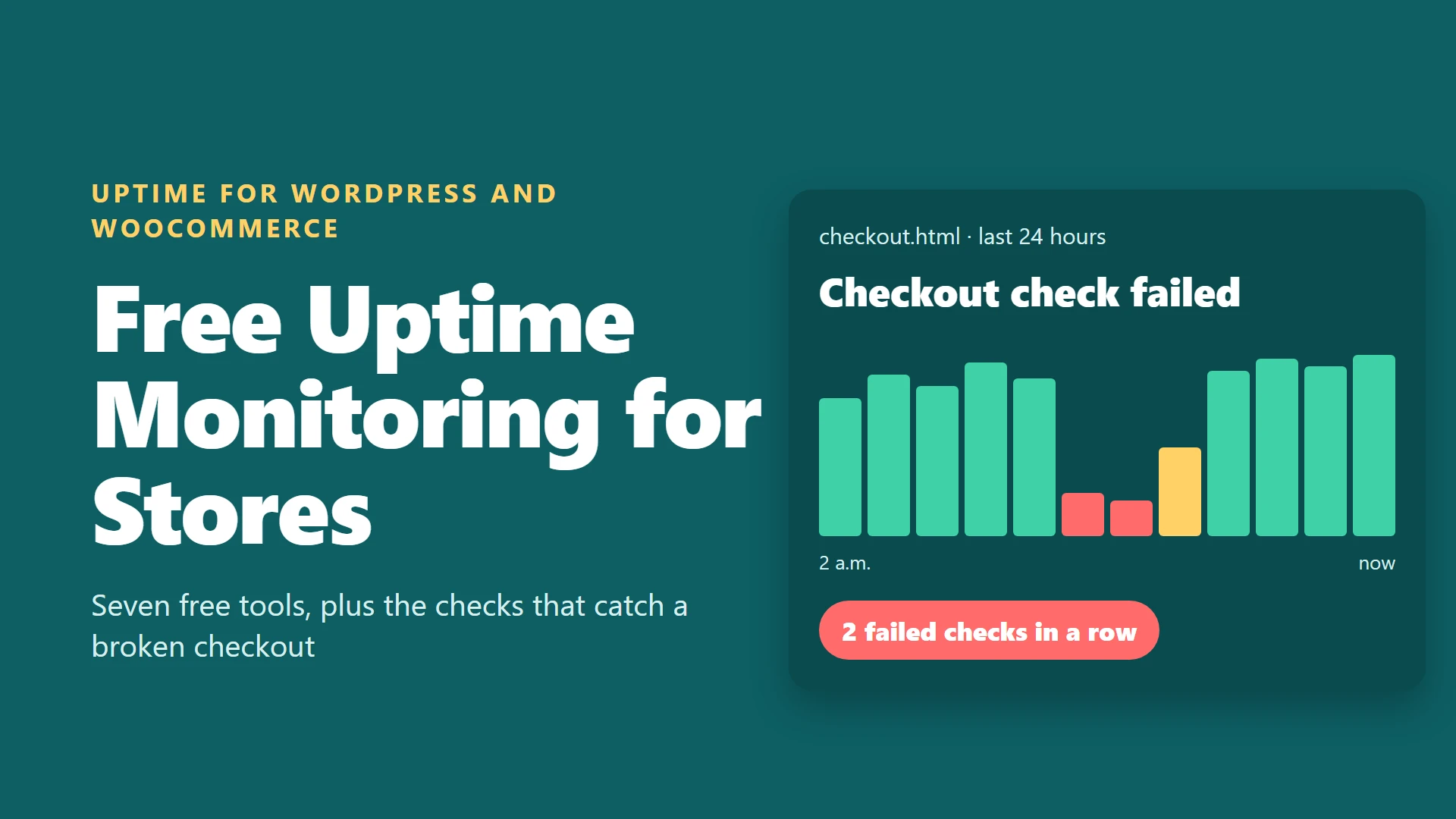
Let’s paint a picture you really don’t want to live through. It’s the Friday after Thanksgiving – your biggest sales day of the year – and your WooCommerce store has been quietly broken since 2 a.m.
Everything looks fine when you check from your phone, because your homepage is cached. But the checkout page is throwing an error, and every shopper who clicked “Place order” left. You find out at lunch, when a customer emails you, and by then you’ve lost half a day of sales.
That’s exactly what uptime monitoring prevents, and the basic fix is free. In this guide, we’ll compare seven tools using each service’s pricing and documentation pages as of late October 2026.
More importantly, we’ll look at how to set them up so they catch the failures that actually hurt a WooCommerce store, not just the obvious “site is completely down” kind. Black Friday 2026 lands on November 27, so you’ve got about a month to get this running.
Why “Is the Homepage Up?” Is the Wrong Question
Most free monitors check just one thing: does your homepage respond? Here’s why we think that’s not enough.
For a brochure site, that’s fine. For a store, it misses the cases that cost you money. Three stand out.
The first is a cached homepage hiding a broken checkout. Page caching serves a saved copy of your homepage even when PHP or the database is failing behind it.
The second is silent background failure. WordPress runs scheduled tasks through WP-Cron, which, as this hosting guide explains, only fires when a visitor loads a page. WooCommerce relies on it for background jobs. When it stalls, your store can keep taking orders on the front end while emails and follow-up tasks quietly pile up. Caching makes this worse, because cached visits never reach PHP.
The third is an expired SSL certificate. Browsers show a scary warning, and shoppers leave.
So the real goal is a small set of checks that cover the pages where money changes hands.
How Much Does Downtime Actually Cost?
Big-company numbers get quoted often. Shopify’s blog cites a 2024 report from research firm ITIC estimating that an hour of website downtime costs more than $300,000 for 90% of midsize and large businesses.
That figure covers much larger companies than most WooCommerce stores, so don’t panic over it.
Here’s a simpler way to think about it. Take your monthly revenue and divide it by the number of hours in a month. Then multiply by three or four for peak periods like Black Friday. That’s your rough cost per hour of silence.
The Four Kinds of Outage (and Which Tool Catches Which)
It helps to think of failures in categories, because no single free tool catches all of them.
A total outage means the server is down or the domain stopped resolving. Every monitor on this list catches it within one check interval.
A partial outage is nastier. The homepage loads from cache, but checkout, login or the admin area errors out. Only monitors that check those specific URLs, ideally for a word on the page, will notice.
A slow death means pages technically load but take 15 seconds, so shoppers leave long before the monitor does. A response time threshold, or a page speed monitor like the one StatusCake includes, helps here.
And a silent background failure is when cron stalls, emails stop and stock syncs lag while the site looks perfect. Only a heartbeat check catches this, because there’s no page to ping.
Most store owners only ever monitor the first category. The expensive surprises tend to hide in the other three – every time.
The 7 Best Free Uptime Monitoring Tools
1. UptimeRobot: The Most Monitors for Free
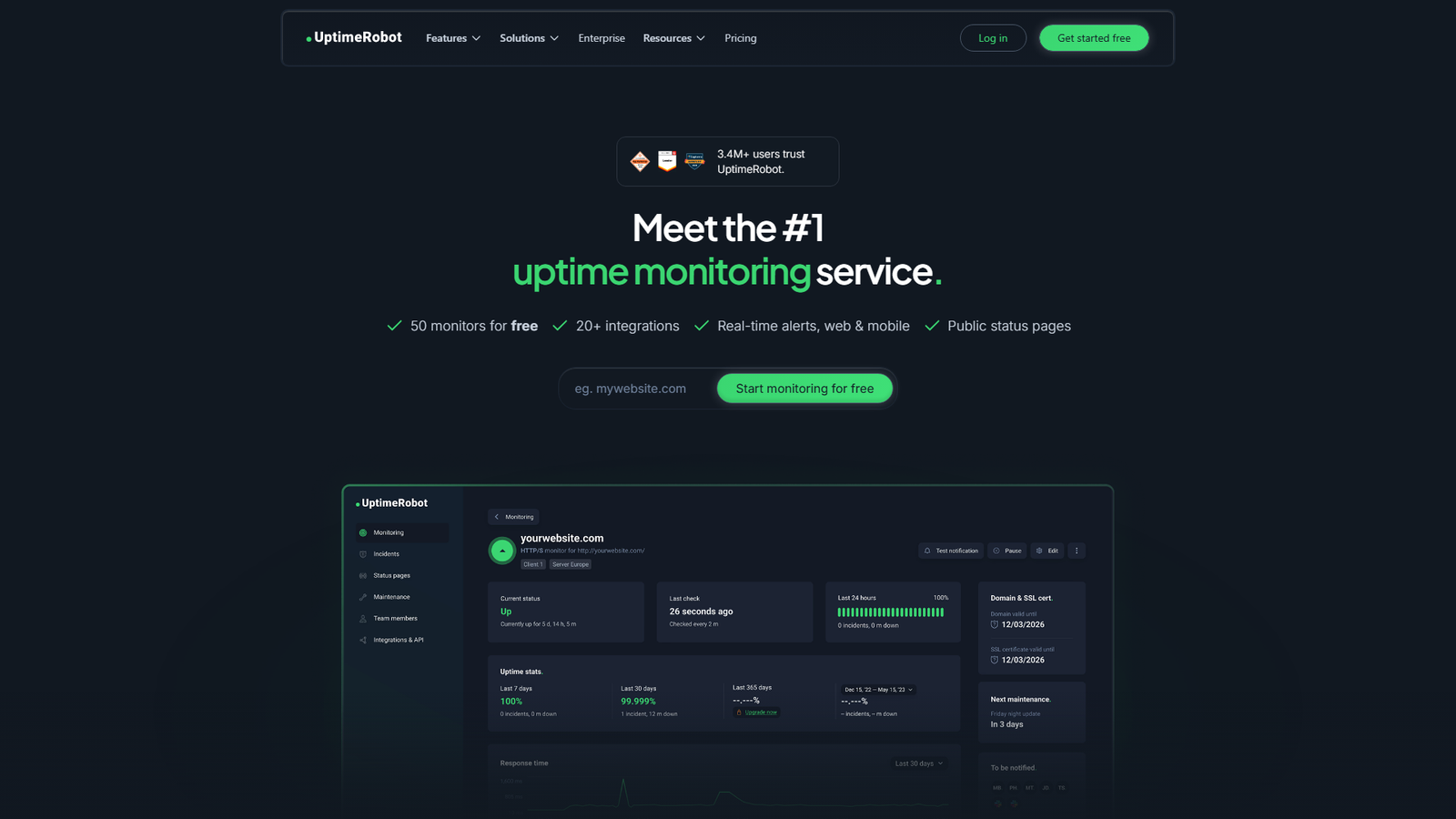
UptimeRobot has long been the default recommendation, and the free plan is generous.
According to its pricing page, you get 50 monitors with a 5-minute check interval and one status page. Email alerts are included, but SMS and voice call alerts require purchased credits, and free accounts get 5 integrations. Paid plans start at $9 a month billed annually.
One thing to double-check. For a while in late 2024, several sites reported that UptimeRobot’s free plan was limited to non-commercial use. The current Terms of Service say the service is “available for any use, including commercial and business use,” with a Fair Use Policy added in May 2026. The pricing page still describes the free plan as good for hobby and non-profit projects, so read the Fair Use Policy before you rely on it for a business.
Best for: monitoring many small sites, or lots of URLs on one store.
2. Better Stack: Faster Checks and a Modern Interface
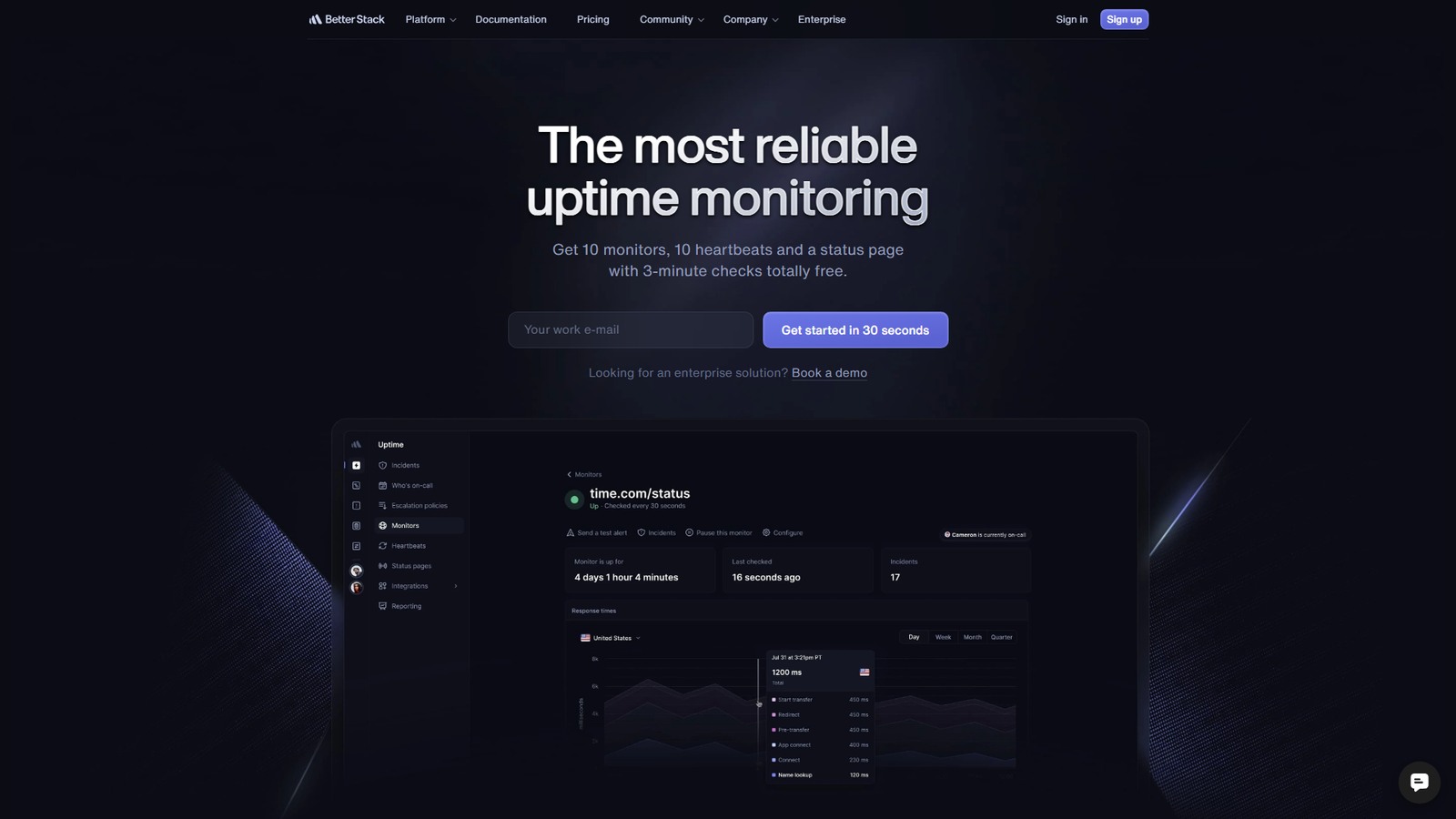
Better Stack’s free tier is smaller, but faster.
It lists free accounts with 10 monitors, 10 heartbeats and a status page with 3-minute checks. It also describes taking screenshots of a website that’s down, which is genuinely useful when you’re trying to work out what customers saw. Alerts go out by email, Slack and push notifications.
Best for: teams who want a cleaner dashboard and Slack alerts out of the box.
3. StatusCake: Monitors Plus SSL and Page Speed
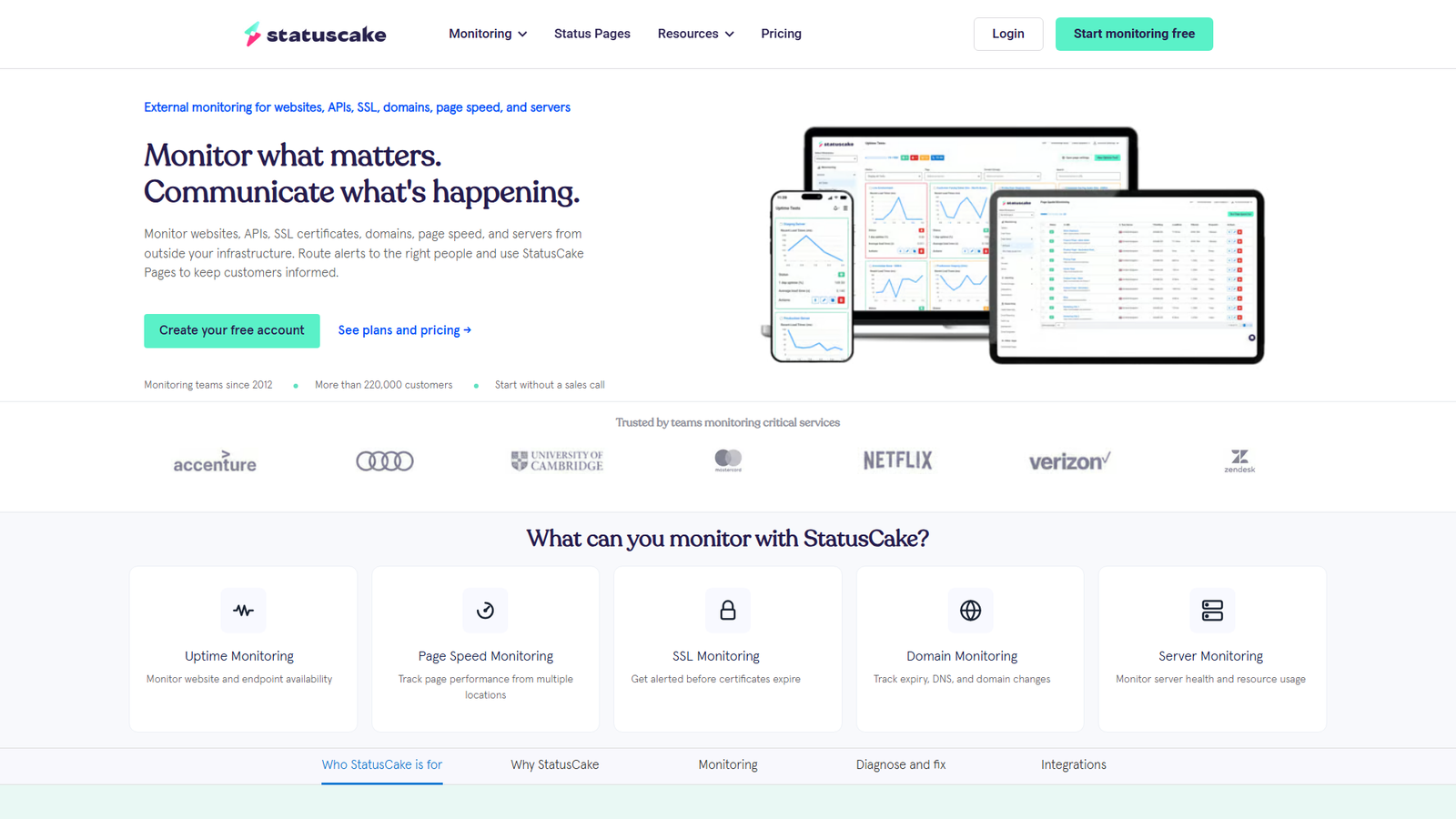
The StatusCake pricing page lists a free plan with 10 uptime monitors and 5-minute test intervals. You also get one page speed monitor, one domain monitor and one SSL monitor.
We’d call that SSL monitor the quiet hero – certificate expiry is one of the most avoidable outages in existence. Paid plans start around $20 a month on annual billing.
Best for: stores that want SSL and domain expiry alerts without paying.
4. Jetpack Monitor: Zero Extra Tools
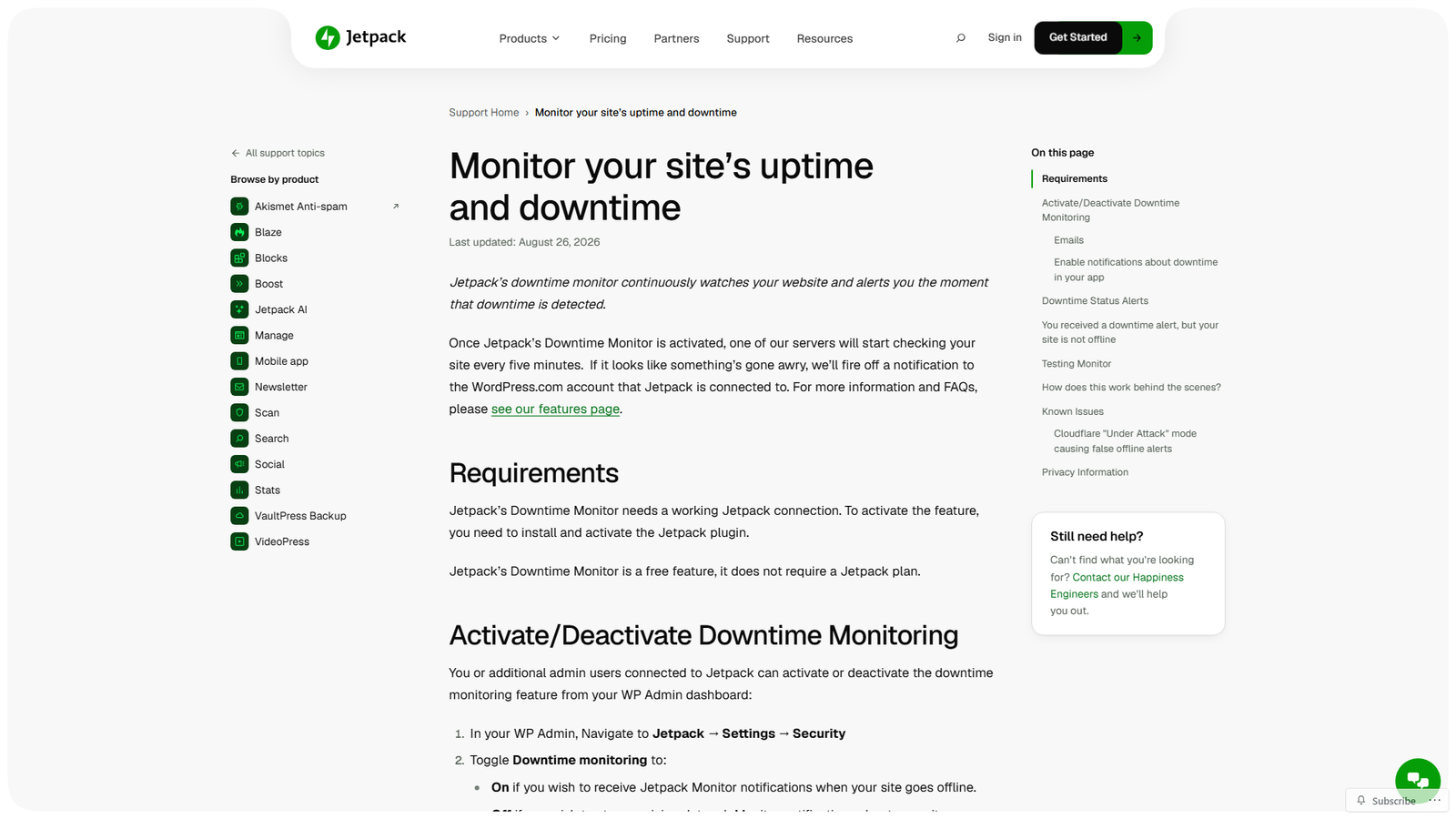
If you already use Jetpack, you can turn this on in a minute.
Per Jetpack’s documentation, the Downtime Monitor is free and doesn’t require a Jetpack plan. A Jetpack server checks your homepage every five minutes. If a check fails, three servers in different locations verify it before you’re notified. You must switch it on under Jetpack, Settings, Security, because it’s off by default.
The limits matter, though. It watches your homepage only. Email notifications go only to the WordPress.com account that connected Jetpack, with no option to add other recipients. Mobile push notifications are available in the Jetpack and WordPress apps.
Best for: a quick safety net on a small site. It isn’t enough on its own for a store.
5. Uptime Kuma: Free Forever If You Can Host It
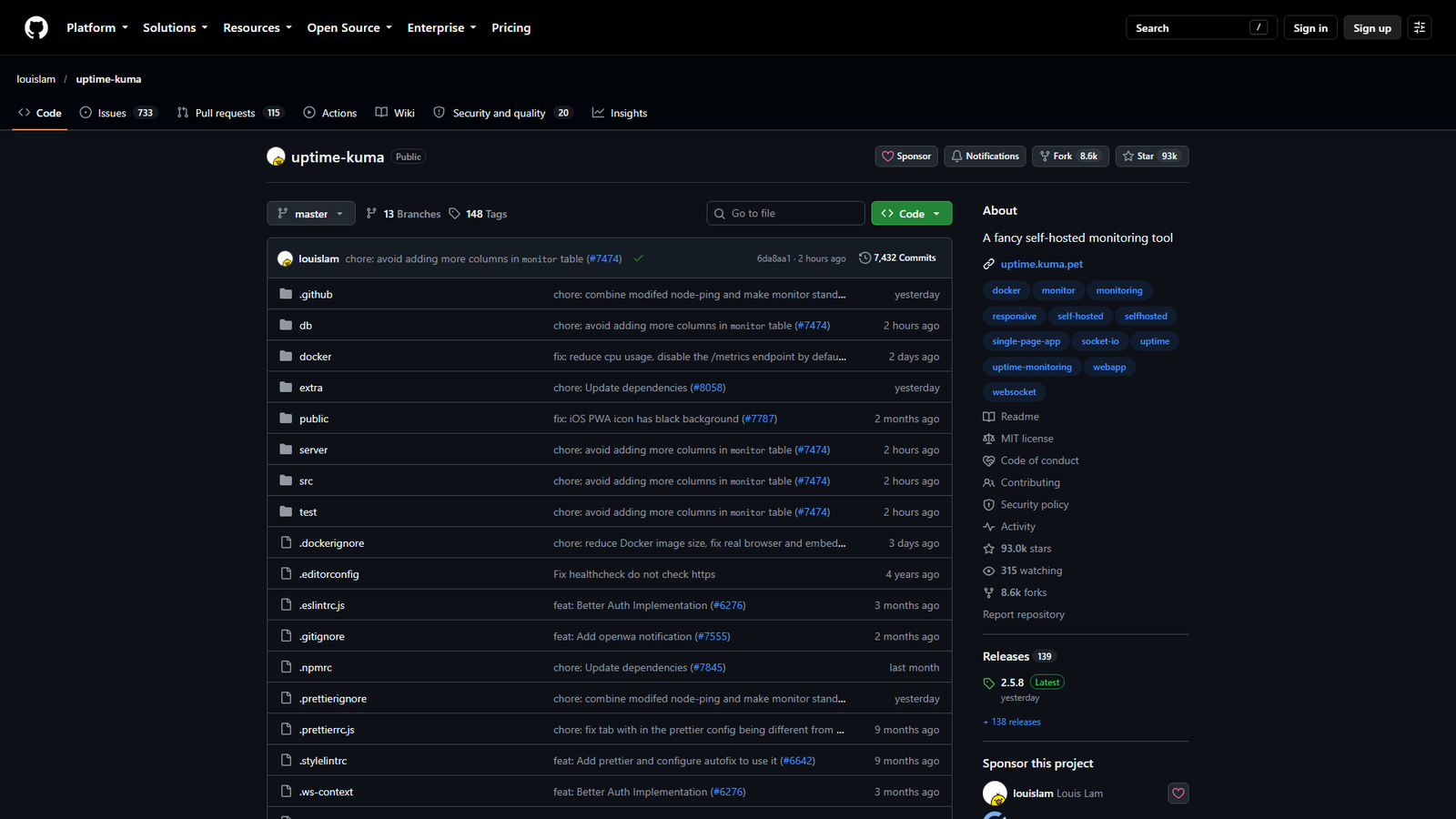
If you’re comfortable with Docker, Uptime Kuma removes the usual limits.
It’s open source and monitors HTTP, keyword, TCP, ping, DNS and Docker containers, with 20-second intervals, status pages and 90 or more notification services. It’s also the best option here for keyword checks. You can tell it to look for a specific piece of text on the page and alert you if that text disappears.
Run it on a different server than your store – otherwise it goes down with your store and tells you nothing.
Best for: technical store owners who want unlimited checks and control.
6. Healthchecks.io: For Jobs That Should Run, but Silently Don’t
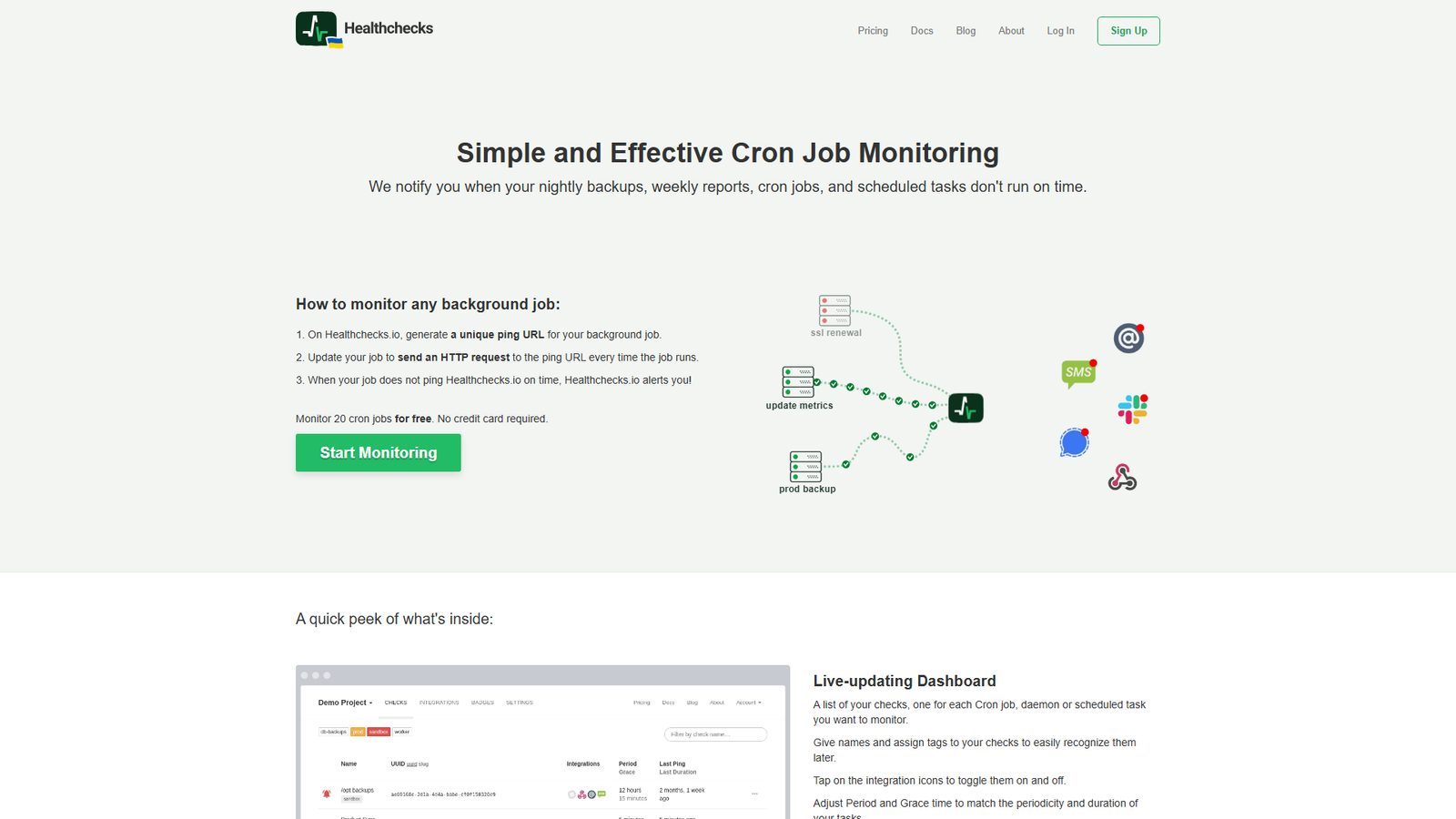
This one is different. Instead of pinging your site, Healthchecks.io waits for your site to ping it, and it shouts when the ping doesn’t arrive. If the ping doesn’t arrive on schedule, it alerts you.
That makes it perfect for scheduled work. The pricing page shows a free Hobbyist plan that monitors 20 jobs and keeps 100 log entries per job. The paid Supporter plan costs $5 a month with the same limits. Business is $20 a month for 100 jobs, adding SMS, WhatsApp and phone call credits.
For WooCommerce, a good use is a heartbeat tied to a recurring task, like a nightly report or a scheduled sync. If the ping stops, you know cron is stuck.
Best for: catching silent cron and scheduled task failures.
7. WP Crontrol With Cron Alerts: The WordPress-Side Partner
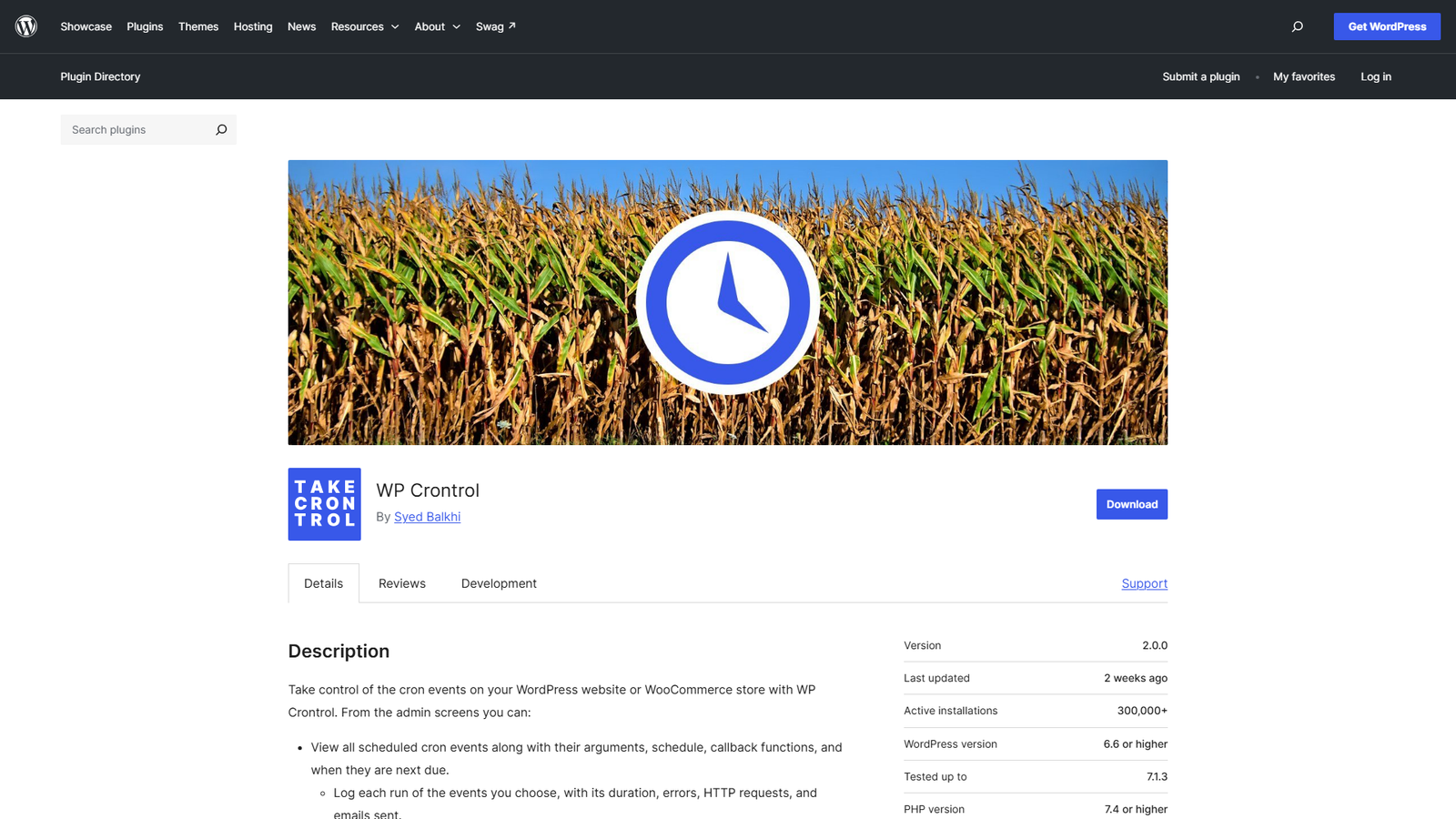
This isn’t an uptime monitor, but it belongs on the list. The WP Crontrol plugin has over 300,000 active installs and lets you view, edit, pause and run cron events. With optional logging turned on, its Cron Alerts feature can email you when a logged event fails. That makes it a handy diagnostic when a heartbeat goes missing and you need to find out why.
A note of caution: several recent reviews criticize the plugin’s AI features and promotions for the maintainer’s other plugins. Check the settings after installing.
Best for: debugging missed scheduled tasks.
Free Plans at a Glance
Here’s what each free plan gives you, based on the pricing and documentation pages listed above.
| Tool | Free monitors | Check interval | Notable extra |
|---|---|---|---|
| UptimeRobot | 50 | 5 minutes | 1 status page |
| Better Stack | 10 (shared with heartbeats) | 3 minutes | Screenshots when down |
| StatusCake | 10 | 5 minutes | SSL, domain and page speed monitors |
| Jetpack Monitor | Homepage only | 5 minutes | Needs Jetpack installed |
| Uptime Kuma | Unlimited (self-hosted) | 20 seconds | Keyword checks |
| Healthchecks.io | 20 jobs | On schedule | Catches missed jobs |
The Arithmetic of Short Outages
Here’s something the comparison tables never tell you, and it changes how we should configure alerts. A monitor that checks every five minutes doesn’t see everything that happens in between. And the way you configure alerts changes what it catches.
Suppose an outage lasts d minutes and the monitor checks every i minutes at an unknown moment. If one failed check is enough to alert you, the chance of catching the outage is d divided by i, capped at 100%. So a three-minute blip on a five-minute monitor is caught only 60% of the time.
That sounds fine, until you notice that most people require two failed checks in a row to avoid false alarms. Then the outage has to span two checks. For a five-minute interval, that means it has to last longer than five minutes to be caught at all, and it’s caught with certainty only if it lasts ten minutes or more.
An eight-minute outage, for example, is detected about 60% of the time.
Speed matters as much as probability. With a five-minute interval and two required failures, you learn about a problem on average 7.5 minutes after it starts, and up to 10 in the worst case. That’s before you’ve even opened your laptop. On a store doing real volume, those minutes cost money.
That’s the argument for the faster intervals some tools offer. Better Stack lists 3-minute checks on its free plan, and Uptime Kuma can run 20-second checks if you self-host it.
It also puts promises about availability in perspective. A month has roughly 43,800 minutes. A 99% uptime target allows about 438 minutes of downtime, or 7.3 hours. A 99.9% target allows about 43.8 minutes. A 99.99% target allows only about 4.4 minutes.
That last one is shorter than a single five-minute check interval, so a free five-minute monitor couldn’t even verify that you hit it. Most small stores should aim for a goal they can actually measure.
The 20-Minute Setup for a WooCommerce Store
Here’s the exact workflow we’d use. It relies on free tiers only.
- Pick one main monitor: UptimeRobot for volume, or Better Stack for speed. Add your homepage first.
- Add the pages that make money. Create separate monitors for your cart page, your checkout page and one product page. If your tool supports keyword checks (Uptime Kuma does), look for a word that only appears when the page loads correctly, like “Place order” on checkout.
- Monitor your REST API. Add the /wp-json/ address of your site, since many plugins and apps depend on it.
- Turn on SSL expiry alerts. StatusCake’s free SSL monitor handles this nicely, and so does Uptime Kuma.
- Set up a cron heartbeat. Create a Healthchecks.io check, then have a scheduled WordPress task call its ping address on every run. If the ping goes quiet, you get an email.
- Send alerts somewhere you’ll see them – email alone is easy to miss at 2 a.m., so add a Slack or Telegram channel if the tool supports it. Then test it by pausing a monitor on purpose.
- Create a free status page. Both UptimeRobot and Better Stack include one, and it saves you from answering the same “is the site down?” message twenty times.
- Write a two-line runbook. Who gets the alert, and what’s the first thing they check? Hosting dashboard, then error log, then recent plugin updates.
What to Do When the Alert Fires
An alert is only useful if you know your first moves. So let’s settle them before you need them.
Start by opening the page yourself in a private window. This confirms the problem is real and lets you note exactly what you see, whether that’s an error code, a blank page or a slow load.
Then check your host’s status page and dashboard. If the whole server is struggling, that’s the quickest answer, and it saves you from hunting through plugins.
Next, look at what changed recently. The last plugin update, theme update or code change is the cause far more often than anything exotic. Roll back the most recent change first.
If that doesn’t explain it, read the error log. Your host’s control panel usually has a PHP error log, and one clear line there often points straight at the culprit.
Finally, tell your customers. A short note on social media or your status page buys a lot of goodwill. People forgive downtime much more easily than silence.
Do this drill once, on a quiet afternoon, with a staging copy. The first real outage is a bad time to learn where the error log lives.
Common Mistakes
Let’s finish with four traps worth avoiding.
The first is checking too often. A one-minute interval on a small shared hosting plan can add load of its own, and five minutes is a sensible default.
The second is alerting only yourself. If you’re asleep, nobody knows, so add a second person for peak season.
The third is ignoring false alarms. If you get one, adjust the settings (for example, by requiring two failed checks) instead of muting the monitor.
And the fourth is never testing the alert path. The first time you see an alert shouldn’t be during a real outage.
Which One Should You Pick?
Here’s how we’d match each tool to your situation.
For a small blog or brochure site, we’d go with Jetpack Monitor or UptimeRobot, done in five minutes.
For a WooCommerce store without a technical person, we’d use UptimeRobot plus StatusCake for SSL, and a Healthchecks.io heartbeat.
A developer or agency managing several stores will get the most from Uptime Kuma on a separate server, plus Healthchecks.io.
And if your team lives in Slack, Better Stack’s alerts will fit naturally.
Summing Up
Free monitoring won’t stop outages – but it shrinks them from “the day we found out at lunch” to “the five minutes it took to wake up and fix it.”
With Black Friday a month away, let’s get checks set up for your cart, checkout and cron today. Test the alerts once. Then forget about them until the day they save you.