Every site needs a popup at some point. A sale announcement, a product offer notice, a newsletter signup, a cookie consent message. But the usual solution is installing a popup plugin, which adds more CSS, more JavaScript, more database queries, and another thing to update.
If you only need a simple popup, a plugin may be “overkill”. A few lines of code in your child theme can add a popup that looks good, works on every page, and remembers whether a visitor has already seen it. No extra load, no settings pages, no subscription fees.
This guide shows how to build a popup in WordPress without a plugin. You will add the HTML markup, style it with CSS, and control it with vanilla JavaScript – including cookies to stop the popup from appearing repeatedly.
What kind of popup can you build without a plugin?
The approach in this guide works for any simple popup that shows content on page load and hides when the visitor dismisses it. Practical examples:
- A floating announcement bar for a seasonal sale or free shipping notice
- A newsletter signup form that appears once per visitor
- A cookie consent notice with a dismiss button
- A product announcement or limited-time offer modal
- An information popup for store policies, size guides, or delivery updates
If your popup needs conditional logic, multi-step forms, A/B testing, or analytics tracking, a plugin might be a better fit. But for a clean one-message popup, custom code is lighter and faster.
Why skip a plugin for this?
Popup plugins are convenient, but they come with “extra things”:
- They load extra CSS and JavaScript on every page, even when the popup is not displayed
- They add database tables and admin settings pages you may never touch
- They need updates and compatibility checks every time WordPress or your theme changes
- Many include tracking, analytics, or third-party connections you did not ask for
A lightweight code snippet does one thing and does it well. Once it works, you do not need to maintain a plugin subscription or worry about another dependency.
That said, the code approach is not for everyone. If you are not comfortable editing PHP files or if multiple people manage your site, a plugin may be the safer path. But if you want full control with zero bloat, keep reading.
What you need before starting
- A WordPress site with a child theme active (or the Code Snippets plugin to hold custom code)
- Access to your child theme functions.php file
- Basic comfort editing and pasting code
- A backup of your site before editing functions.php
Never edit your parent theme directly. Use a child theme or a code snippets plugin so your changes survive theme updates.
How the popup will work
The logic is simple and follows three steps.
First, your WordPress theme sends the popup HTML to the footer of every page. This is done through a WordPress hook called wp_footer.
Second, CSS hides the popup by default and defines how it looks when visible: overlay background, centered modal box, close button, and transitions.
Third, JavaScript checks whether a cookie exists for this visitor. If the cookie is missing, the script shows the popup after a short delay. When the visitor dismisses it, a cookie is created so the popup does not appear again.
No external libraries are needed. All cookie management uses vanilla JavaScript.
Step-by-step: create a popup without a plugin
Here’s the step-by-step process of creating a WordPress popup without a third party plugin.
Step 1: add the popup HTML to the footer
Open your child theme functions.php file and add the following code. This function hooks into wp_footer and outputs the popup markup on every page.
// Add popup HTML to the footer
add_action( 'wp_footer', 'naf_add_popup' );
function naf_add_popup() {
if ( is_admin() ) {
return;
}
?>
<div id="naf-popup" class="naf-popup-overlay" style="display:none;">
<div class="naf-popup-modal">
<button class="naf-popup-close" onclick="nafDismissPopup()">×</button>
<div class="naf-popup-content">
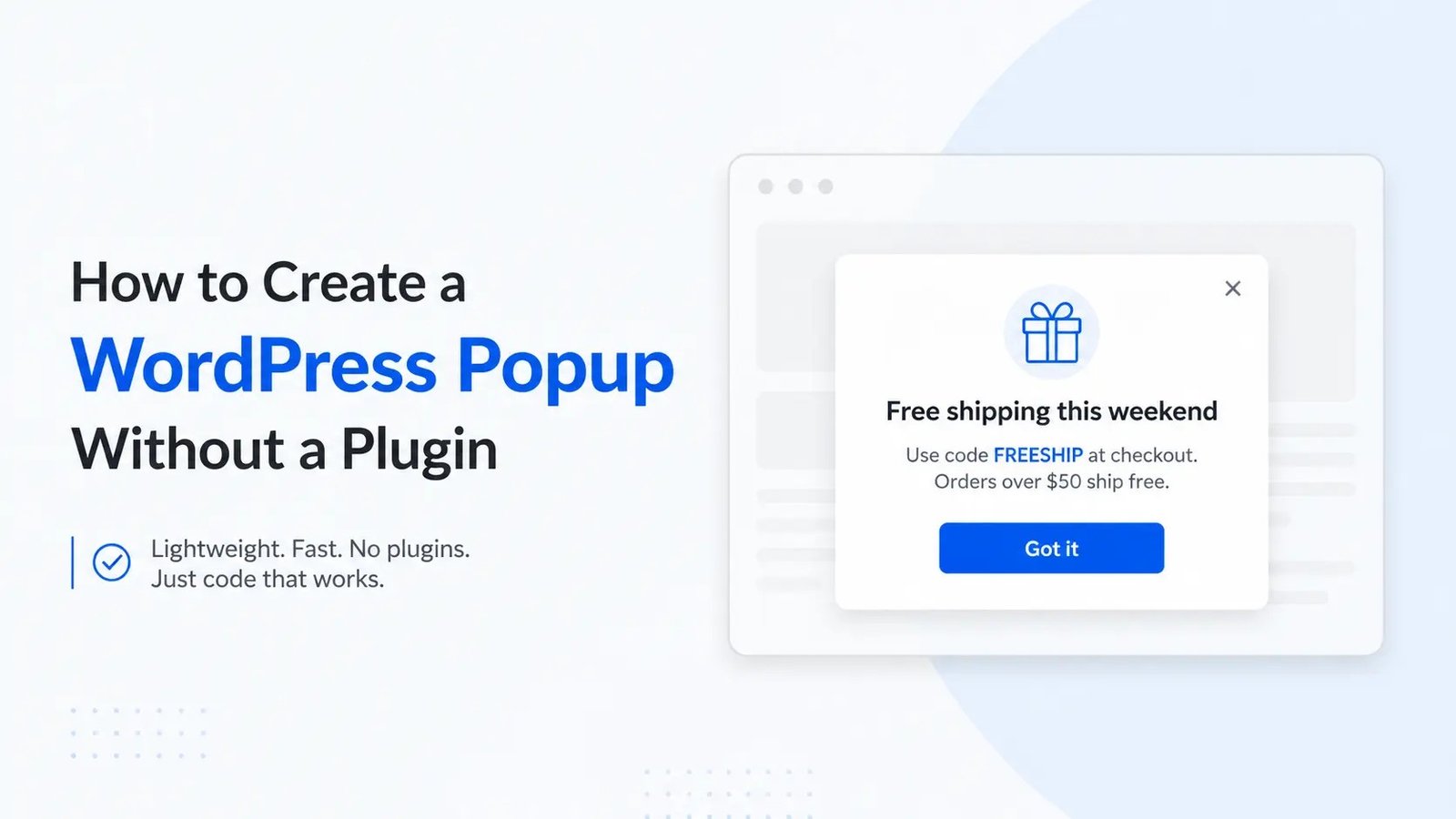
<h3>Free shipping this weekend</h3>
<p>Use code FREESHIP at checkout. Orders over $50 ship free.</p>
<button class="naf-popup-btn" onclick="nafDismissPopup()">Got it</button>
</div>
</div>
</div>
<?php
}The popup is hidden by default with style=”display:none;”. The JavaScript will show it later. The close button and the “Got it” button both call a function called nafDismissPopup(), which we will write in Step 3.
Replace the heading, text, and button with your own message. You can include an image, a newsletter form, or a product link inside the naf-popup-content div.
Step 2: style the popup with CSS
Add this CSS to your child theme style.css file or through the WordPress Customizer. It creates a dark overlay behind the popup and a centered modal box.
/* Popup overlay - dark background */
.naf-popup-overlay {
    position: fixed;
    top: 0;
    left: 0;
    width: 100%;
    height: 100%;
    background: rgba(0, 0, 0, 0.6);
    z-index: 99999;
    display: flex;
    align-items: center;
    justify-content: center;
}

/* Popup modal box */
.naf-popup-modal {
    background: #fff;
    max-width: 480px;
    width: 90%;
    border-radius: 8px;
    padding: 40px 30px;
    position: relative;
    box-shadow: 0 10px 40px rgba(0, 0, 0, 0.2);
}

/* Close button */
.naf-popup-close {
    position: absolute;
    top: 10px;
    right: 15px;
    background: none;
    border: none;
    font-size: 28px;
    cursor: pointer;
    color: #999;
}

.naf-popup-close:hover {
    color: #333;
}

/* Content inside the popup */
.naf-popup-content {
    text-align: center;
}

.naf-popup-content h3 {
    margin-top: 0;
    font-size: 22px;
}

.naf-popup-btn {
    background: #1e73be;
    color: #fff;
    border: none;
    padding: 12px 30px;
    border-radius: 4px;
    font-size: 16px;
    cursor: pointer;
    margin-top: 10px;
}

.naf-popup-btn:hover {
    background: #155a96;
}
Adjust the colors, font sizes, and padding to match your site design. The overlay uses flexbox centering, so the popup stays centered on any screen size.
Step 3: add JavaScript to show and hide the popup
Add this JavaScript to your theme, either in a separate JS file enqueued through functions.php or directly in the footer. For simplicity, we can add it alongside the popup HTML.
Update the wp_footer function from Step 1 to include the JavaScript:
// Updated function with JavaScript included
add_action( 'wp_footer', 'naf_add_popup' );
function naf_add_popup() {
if ( is_admin() ) {
return;
}
?>
<div id="naf-popup" class="naf-popup-overlay" style="display:none;">
<div class="naf-popup-modal">
<button class="naf-popup-close" onclick="nafDismissPopup()">×</button>
<div class="naf-popup-content">
<h3>Free shipping this weekend</h3>
<p>Use code FREESHIP at checkout. Orders over $50 ship free.</p>
<button class="naf-popup-btn" onclick="nafDismissPopup()">Got it</button>
</div>
</div>
</div>
<script>
function getCookie(name) {
let match = document.cookie.match(new RegExp('(^| )' + name + '=([^;]+)'));
return match ? match[2] : null;
}
function setCookie(name, value, days) {
let date = new Date();
date.setTime(date.getTime() + (days * 24 * 60 * 60 * 1000));
document.cookie = name + '=' + value + '; expires=' + date.toUTCString() + '; path=/';
}
function nafShowPopup() {
document.getElementById('naf-popup').style.display = 'flex';
}
function nafDismissPopup() {
document.getElementById('naf-popup').style.display = 'none';
setCookie('naf_popup_dismissed', 'yes', 30);
}
// Show popup if cookie doesn't exist
if (!getCookie('naf_popup_dismissed')) {
setTimeout(nafShowPopup, 3000);
}
</script>
<?php
}
Let us break down what the JavaScript does:
- getCookie() reads a cookie by name. If no cookie exists, it returns null.
- setCookie() creates a cookie with a name, value, and expiry in days. The path=/ makes it work across the entire site.
- nafShowPopup() changes the popup display from none to flex, making it visible.
- nafDismissPopup() hides the popup and sets a cookie named naf_popup_dismissed that expires in 30 days.
- The check at the bottom runs when the page loads. If naf_popup_dismissed exists, nothing happens. If it does not exist, the popup appears after a 3-second delay.
The 3-second delay gives the page time to load fully before the popup appears. You can change this to any value. Set it to 0 if you want the popup to appear immediately.
Step 4: test the popup
After adding the code to your child theme:
- Visit your site frontend. Wait 3 seconds. The popup should appear.
- Click the close button or the “Got it” button. The popup should hide.
- Refresh the page. The popup should not appear again because the cookie is set.
- Delete the cookie from your browser (or use a private window) and visit again. The popup should reappear.
If the popup does not appear, check for PHP errors in your debug log. A missing semicolon in functions.php can break the entire site.
Step 5: customize the popup for your use case
You can adapt this basic popup for different purposes without changing the core logic.
Newsletter signup: replace the content div with an email input and a submit button. Connect the form to your email service provider or use a WordPress action to store the email.
Sale announcement: change the heading, text, and button to promote a limited-time offer. You can also add a countdown timer inside the naf-popup-content div.
Cookie consent notice: replace the popup content with a short message about cookies and a “Accept” button. This approach is GDPR-friendly as long as you do not set tracking cookies before consent.
Exit-intent popup: replace the setTimeout call with a mouseleave event on the document. When the cursor moves toward the top of the page, show the popup.
How to show the popup only on specific pages
By default, the popup appears on every page. You can restrict it using WordPress conditional tags inside the wp_footer function.
To show the popup only on the homepage:
function naf_add_popup() {
    if ( is_admin() || !is_front_page() ) {
        return;
    }
    // rest of the function
}
To show it only on product pages in WooCommerce:
function naf_add_popup() {
    if ( is_admin() || !is_product() ) {
        return;
    }
    // rest of the function
}
Other useful conditional tags include is_single(), is_page(), is_category(), and is_shop(). Check the WordPress conditional tags documentation for a full list.
How to load the JavaScript separately (cleaner approach)
If you prefer keeping your functions.php clean, you can move the JavaScript to a separate file and load it the WordPress way.
Create a file named popup.js in your child theme folder and paste the JavaScript functions there (getCookie, setCookie, nafShowPopup, nafDismissPopup).
Then enqueue it from functions.php:
add_action( 'wp_enqueue_scripts', 'load_popup_scripts' );

function load_popup_scripts() {
    wp_enqueue_script(
        'naf-popup',
        get_stylesheet_directory_uri() . '/popup.js',
        array(),
        '1.0',
        true
    );
}
The true parameter at the end loads the script in the footer, which is where it should be since the popup HTML is also in the footer.
When to use a plugin instead
Custom code works well for a simple popup. But there are scenarios where a plugin is the better choice:
- If you need analytics and A/B testing to optimize popup performance
- If you need targeted display rules based on user behavior, referrer, or device
- If you need a multi-step form with conditional fields inside the popup
- If non-technical team members need to create and manage popups without touching code
- If you need integrations with email marketing platforms like Mailchimp, ConvertKit, or Brevo
Popular lightweight popup plugins include Popup Maker, WowOption, and Icegram. They add more dependencies but also more flexibility.
Summing Up
Building a popup without a plugin is one of those tasks that sounds harder than it is. The pattern is always the same: add HTML to the footer, style it with CSS, control it with JavaScript, and use a cookie to prevent over-showing.
Start with a simple announcement popup. Test it on your site. Then customize the message, timing, and design to fit your needs. You get a working popup with zero plugin, and you understand exactly how it works.
If your needs grow beyond a single message popup, you can always switch to a plugin later. But for most small sites, this approach is all you need.